Bring your Google Maps saved places along.
Your favorite cafes and future destinations already took time to find. Bring a saved list into Maptera as a collection, then keep organizing your places on your personal map.
Your saved list has a new home
Illustrated workflow
- 1. Export your saved list as CSV
- 2. Choose the CSV in Maptera
- 3. Review and import the places
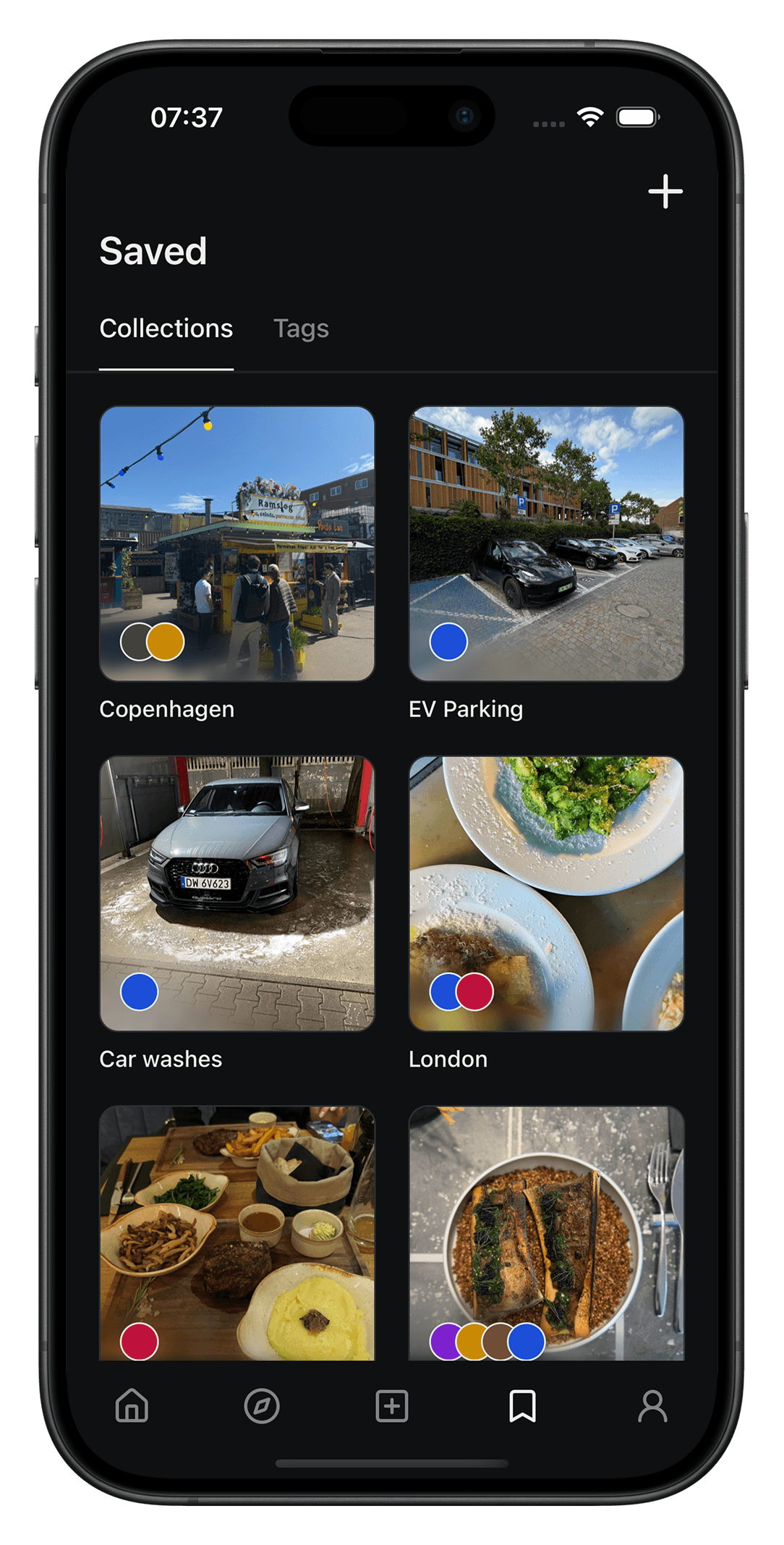
Need the export first? Open Google Takeout or follow Google’s download instructions. Select the relevant saved-list data rather than exporting your whole account.
Get the saved-list CSV
Export the Google Maps saved list you want to bring over as a .csv file and save it somewhere you can access on your phone. Google’s export options vary by list and interface. If you use Google Takeout, select your saved-list data, download the archive and extract it. Find the .csv for the list you want. Use that actual CSV, rather than a screenshot, a shared-list link or a renamed file.
Choose the file in Maptera
Open your profile settings and find Import from Google Maps. Choose the CSV or saved-list import option and select your downloaded .csv file. If your export is a ZIP archive, extract it first so you can select the CSV inside.
Review before importing
Review the places Maptera finds and complete the import into a new collection. CSV files contain place names and Google Maps links; Maptera uses those links to resolve locations. Check the imported pins before relying on them for a trip.
This is a file import, not a live sync with Google Maps. Later changes to your Google Maps list do not automatically update Maptera. Rows without a usable Google Maps place link may not import.
Good to know
- What information can come from the CSV?
- The saved-list importer reads place titles, Google Maps links, and notes or comments when present. A CSV does not include the same location information as a full map, so some places may need checking.
- Can I upload a screenshot of my list?
- Use the exported .csv file for this import flow. A screenshot, PDF or renamed file is not a saved-list CSV.
- Why are some places missing?
- Empty rows and rows without a supported Google Maps URL are skipped. Check the source file and add any missing places manually in Maptera.